How-to guide
How to search public records on LookBefore
Example searches, tips for better results, how to mix sources, what the search can and cannot do, and what happens when you hit Search.
Published July 7, 2026 · 6 min read
LookBefore runs one search across dozens of public sources and returns a single organized report. This guide shows the search tool. It covers how to enter a search, how to narrow to the sources you want, how to read the results, and what happens after you hit Search.
The search page
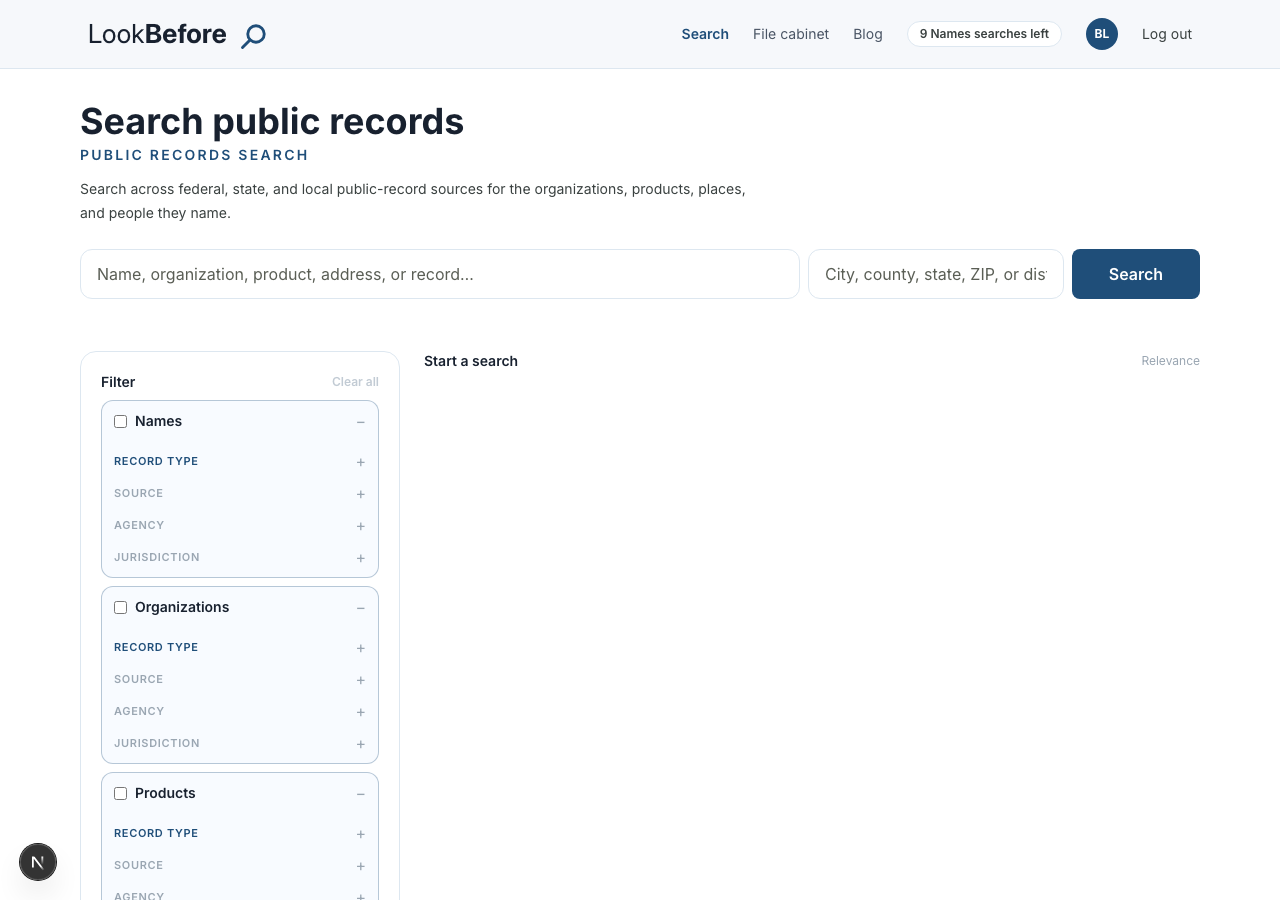
There are two inputs. A keyword box takes a name, a company, a product, a VIN or other identifier, or an address. An optional location box takes a city, county, state, ZIP, or district. Enter what you have and press Search. LookBefore reads what you typed and searches every category that fits. A name with a city searches Names and, when the place is recognized, Places too.
The panel on the left is the filter rail. Before or after a search, it lists the four categories (Names, Organizations, Products, Places) and under each, the record types, sources, agencies, and jurisdictions available. This is where you mix and match.
Reading and narrowing the results
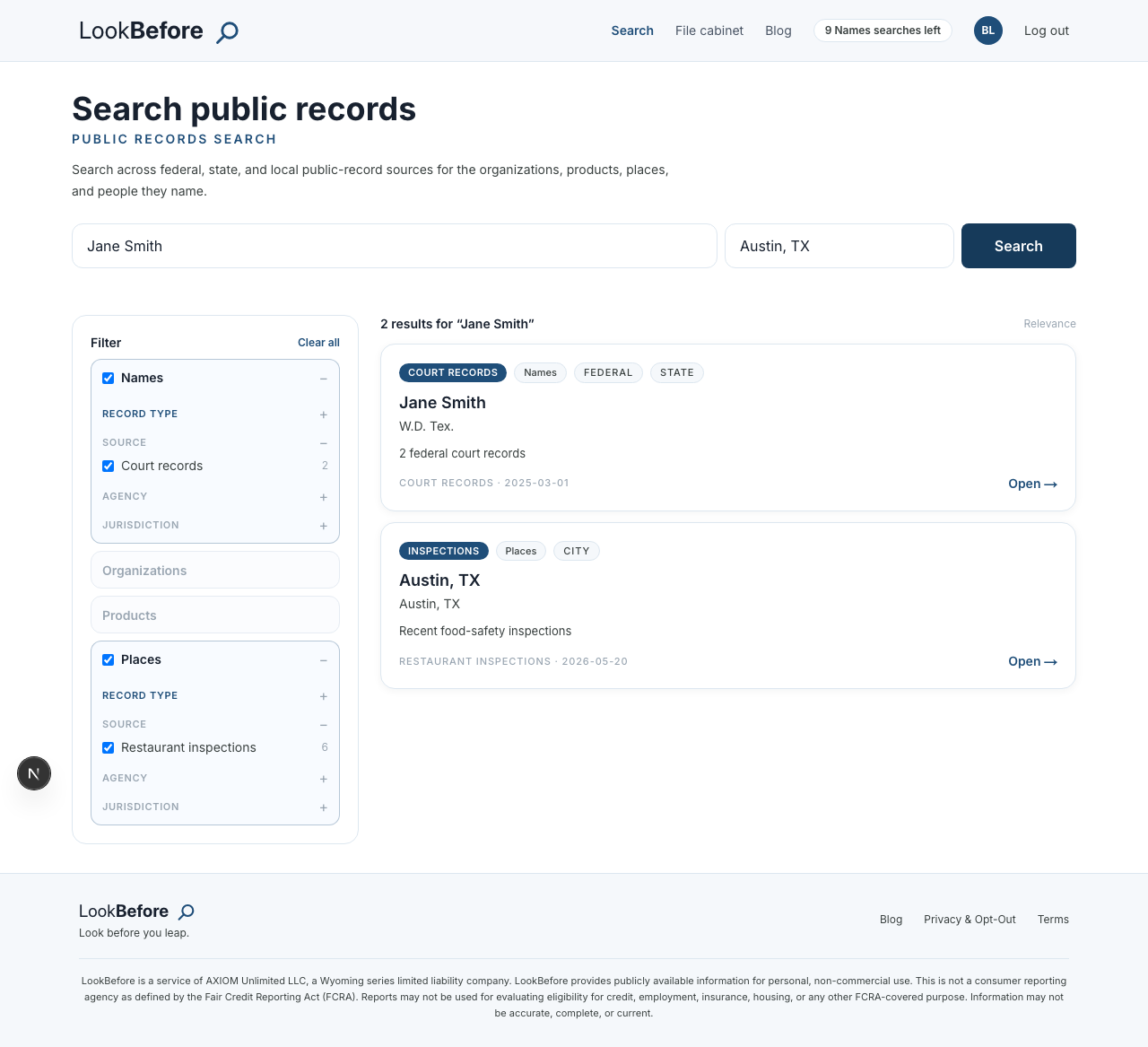
A search for Jane Smith in Austin, TX returns results from more than one category at once. Here, a Court Records card under Names and a Restaurant Inspections card under Places came back from the same search. Each card is tagged with its source, its category, and its jurisdiction (federal, state, city), and each shows how many records it holds. Open takes you to the full report for that category.
To narrow, use the rail. Uncheck a whole category to drop it, or expand a category and check only the sources you want. You can run a Names search that is only court records, or a Places search without air quality. The counts next to each source (Court records 2, Restaurant inspections 6) tell you where the results are before you open anything. Your selections are remembered per category, and the report always lists which sources ran.
Example searches that work well
- A person. Jane Smith, Austin TX. A full name plus a city or state pins the right person.
- A company. Acme Industries, or an identifier for precision. A stock ticker, an EIN, or an LEI.
- A nonprofit. Wounded Warrior Project. Tax-exempt status and nonprofit financials together.
- A product. infant formula or a brand name. Recalls and enforcement across CPSC, FDA, and NHTSA.
- A vehicle. A 17-character VIN. Safety data and recalls for that exact vehicle.
- A place. Austin, TX or a ZIP. Air quality, demographics, regulated facilities, and (in covered metros) restaurant inspections.
Searching by identifier
Many public records are filed under an ID rather than a name. If you have the ID, typing it straight into the search box gives you an exact match instead of a name lookup.
- VIN. The 17-character vehicle identification number on a car’s dashboard, door jamb, title, or insurance card. Returns safety data and recalls for that exact vehicle.
- Ticker symbol. A public company’s stock symbol (like AAPL). Goes straight to its SEC filings.
- EIN. The 9-digit employer identification number on invoices, W-2s, 1099s, and nonprofit donation receipts. Pins a business or nonprofit exactly.
- LEI. The 20-character legal entity identifier used by financial firms, printed in fund documents and regulatory filings.
- NPI. The 10-digit national provider identifier on medical bills and insurance statements. Finds a specific healthcare provider even with a common name.
LookBefore recognizes each format automatically. There is no separate ID field. When a name search returns too many candidates, an identifier from a document you already have usually reaches the right record.
Tips for better results
- Add a location to name searches. Common names need the geography.
- Use full legal names, not nicknames. Records are filed under legal names.
- Include the state with a city. There is a Reading in Pennsylvania, Ohio, Massachusetts, Michigan, and Kansas, and the state picks the right one.
- Repeating a search you have already run is free. LookBefore returns your saved report instead of charging your allowance again.
What the search can and cannot do
LookBefore covers federal court records, financial and campaign filings, healthcare providers, sanctions and exclusions, recalls, and place data, plus a growing set of state and local sources. It does not yet cover most state and county person records, so an everyday person with no federal footprint can honestly return nothing.
What happens when you hit Search
Three things happen in about a second. LookBefore reads the shape of what you typed (a name, an identifier, an address, a city) and routes it to the sources that hold that kind of record. It checks coverage, so a source holding records for one county is never asked about another and out-of-coverage sources are marked not searched up front. Then everything that qualifies runs at once, and the returns are assembled into one report with a per-source status, saved to your account so the next identical search is instant.